Area Calculator User Guide — How to Calculate Area
This guide explains how to use the CalcNest Area Calculator to calculate area online for any shape — regular polygons, quadrilaterals, irregular plots, or boundaries you draw freehand. It covers every mode, every setting, and the exact steps to get accurate results.
If you’re new, start with How to Use It. If you know what you want, jump to the relevant section.
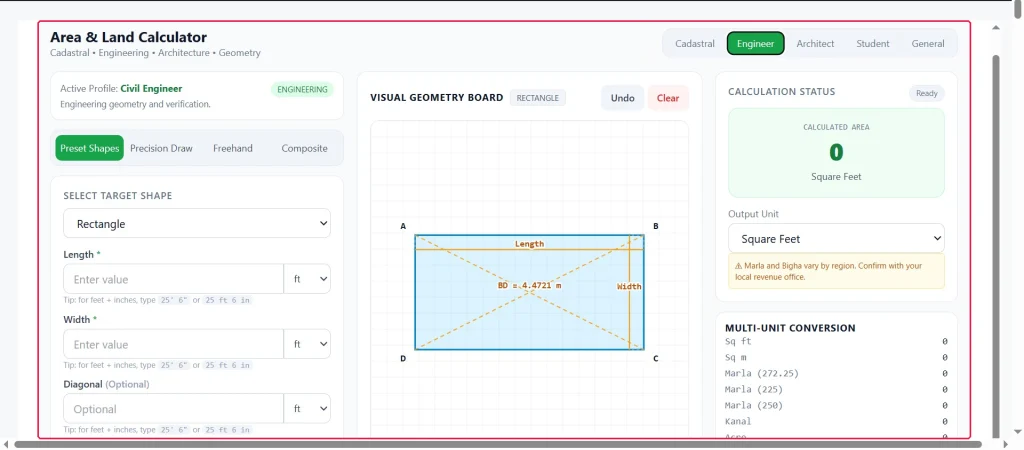
How to Use the Area Calculator — Quick Start
The calculator is at the top of the Area Calculator page. It loads immediately — no account, no sign-up, no download.
The workflow:
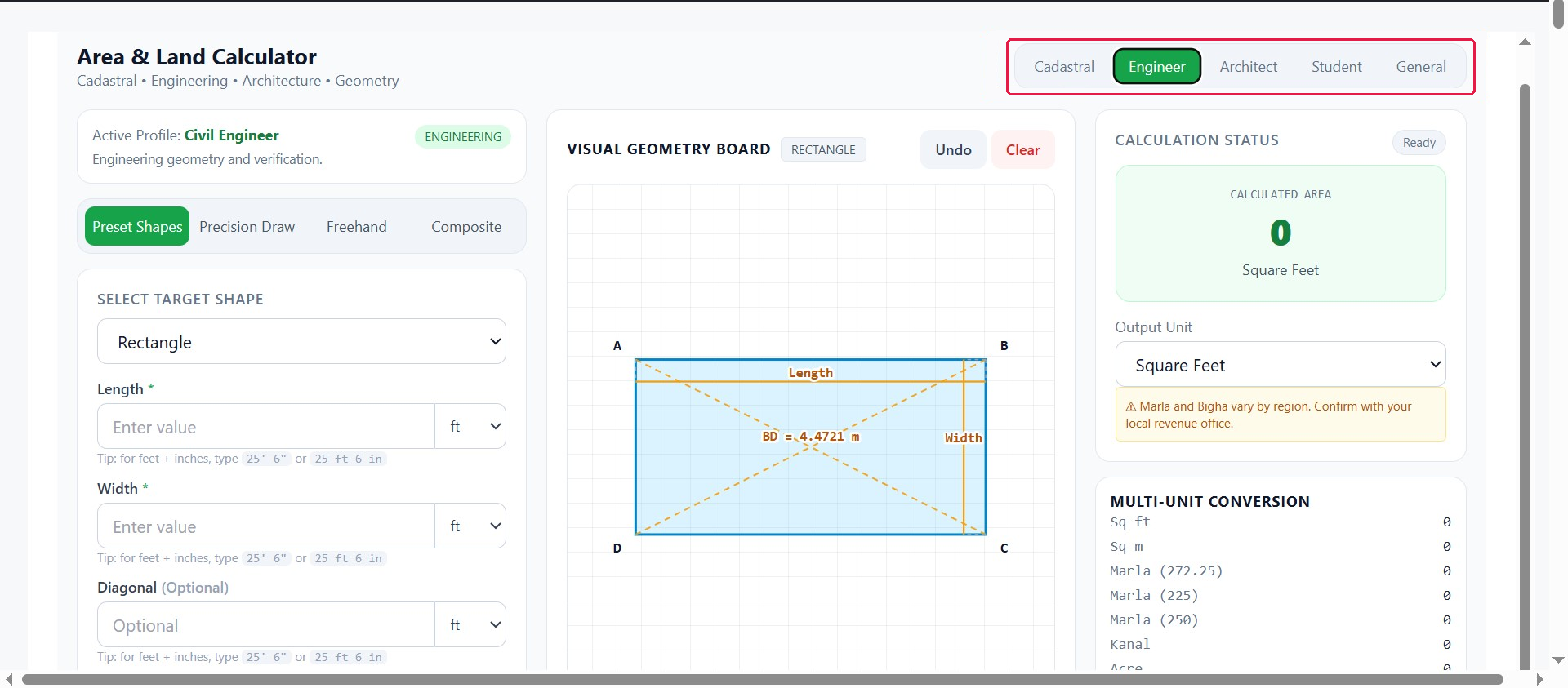
- Choose a profile — Cadastral, Engineer, Architect, Student, or General
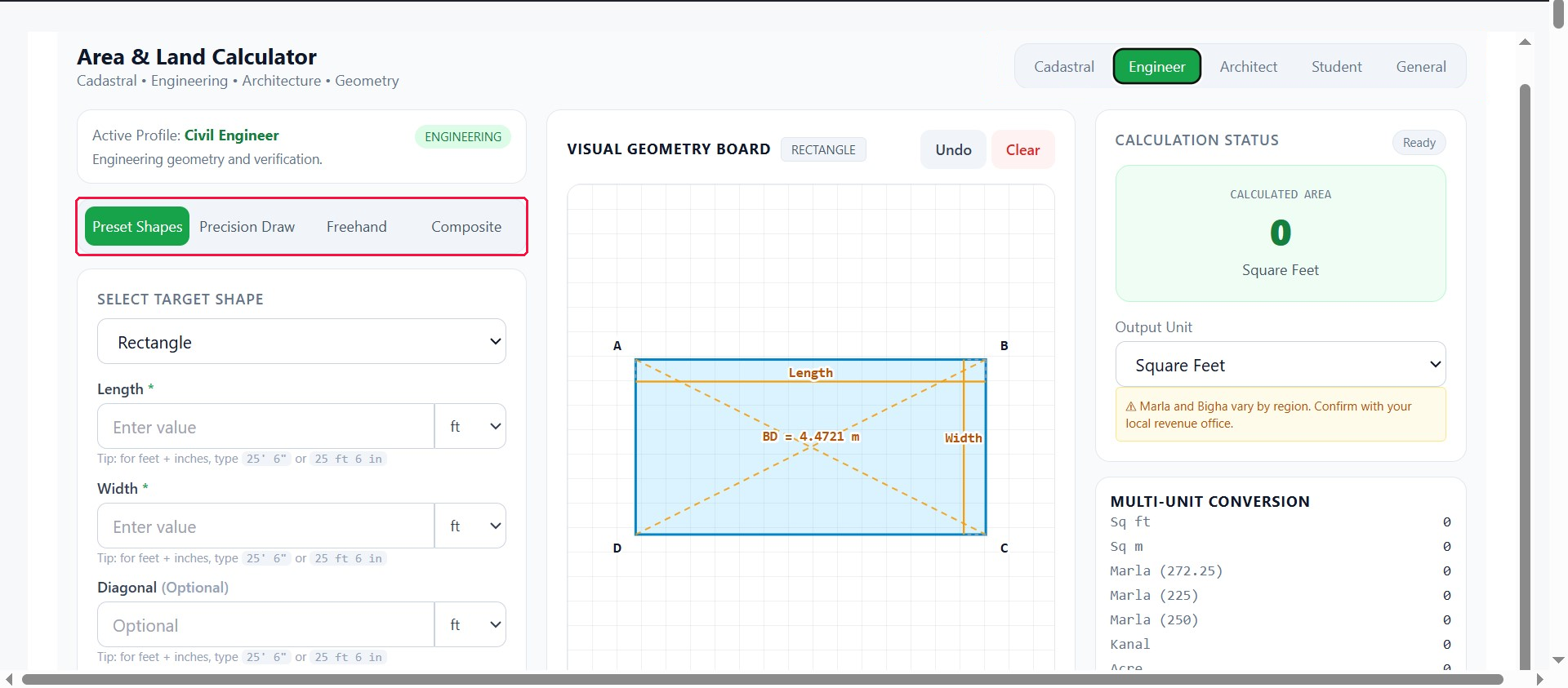
- Choose a mode — Preset Shapes, Precision Draw, Freehand, or Composite
- Select a shape or start drawing
- Enter measurements using each field’s unit selector
- Click Compute Exact Area
- Read the result — area, formula, steps, and confidence badge
- Convert, price, or export using the panels on the right
What This Area Calculator Does
The CalcNest Area Calculator calculates the area of two-dimensional shapes — regular or irregular — from measurements you enter or shapes you draw. It returns the area along with the formula and calculation steps.
It supports 38 shapes across five categories:
- Land / Survey — irregular quadrilaterals, trapezoids, parallelograms, rhombuses, kites, L-shapes, T-shapes, U-shapes, road strips
- Triangles — right, equilateral, isosceles, scalene, and three-side triangles
- Quadrilaterals / Polygons — rectangles, squares, and regular polygons from pentagon to decagon
- Circular Geometry — circles, semicircles, quarter circles, sectors, segments, annuli, annular sectors, ellipses, stadium shapes
- Composite — combinations of shapes
Profiles — Choose Your Setup
| Profile | Default Shape | Guidance |
|---|---|---|
| Cadastral | Irregular Quadrilateral | Precision cadastral geometry |
| Engineer | Rectangle | Engineering geometry |
| Architect | L Shape | Floor plans and composite areas |
| Student | Triangle — 3 Sides | Formula-driven calculations |
| General | Rectangle | General-purpose |
Input Modes — Four Ways to Calculate Area
| Mode | Best for |
|---|---|
| Preset Shapes | Regular shapes, polygons, quadrilaterals |
| Precision Draw | Irregular plots with measured sides |
| Freehand | Drawing shapes and estimating area |
| Composite | Floor plans with cutouts |
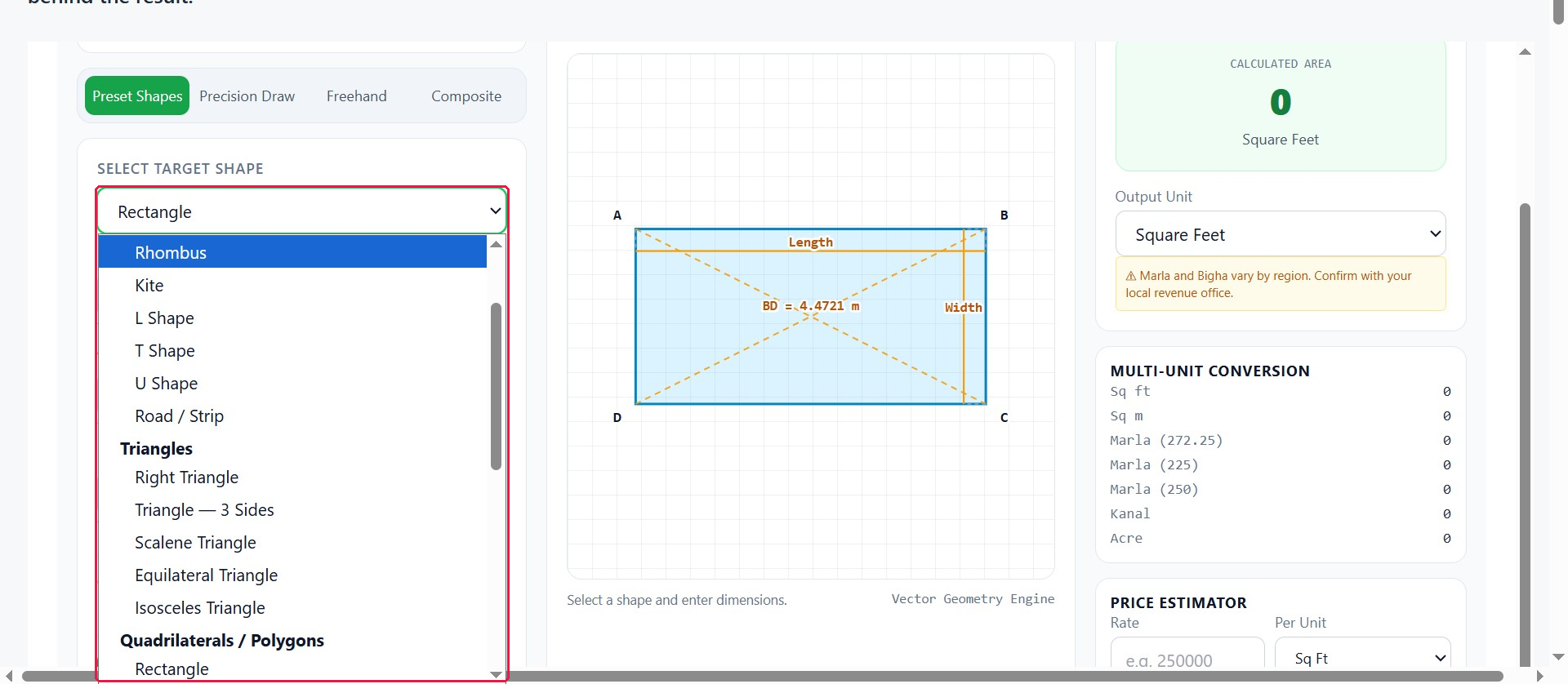
Mode 1 — Calculate Area of Regular Shapes and Polygons
Select a shape from the dropdown. The calculator shows a diagram with required fields.
Supported shapes
Land / Survey: Irregular Quadrilateral, Trapezoid, Parallelogram, Rhombus, Kite, L Shape, T Shape, U Shape, Road / Strip
Triangles: Right Triangle, Triangle — 3 Sides, Scalene Triangle, Equilateral Triangle, Isosceles Triangle
Quadrilaterals / Polygons: Rectangle, Square, Regular Pentagon, Hexagon, Heptagon, Octagon, Decagon
Circular Geometry: Circle, Semicircle, Quarter Circle, Sector, Segment, Annulus, Annular Sector, Ellipse, Stadium
How to calculate area of a quadrilateral
- Select Irregular Quadrilateral from the dropdown
- Enter all four sides and one diagonal
- The calculator splits the quadrilateral into two triangles using Heron’s formula
- Enter additional diagonals for verification if available
- Click Compute Exact Area
For regular quadrilaterals (rectangle, square, trapezoid, parallelogram, rhombus, kite), select the specific shape and enter its required dimensions.
How to calculate area of a regular polygon
- Select the polygon (pentagon, hexagon, heptagon, octagon, decagon)
- Enter the side length
- The calculator applies A = ns²/[4tan(π/n)]
- Click Compute Exact Area
How to calculate area of a circle or elliptical shape
- Select Circle, Semicircle, Quarter Circle, Sector, Segment, Annulus, or Ellipse
- Enter the required dimensions — radius for circle, radius and angle for sector, radii for annulus, semi-axes for ellipse
- Click Compute Exact Area
Mode 2 — How to Calculate Area of Irregular Shapes
The most common question is how to calculate area of an irregular shape. This mode handles it with precision.
What Precision Draw does
Place vertices on a canvas, enter the exact real-world length of each side, and the calculator computes the area using:
- Heron’s formula — for 3-point triangles with all sides entered
- Triangulation from diagonals — for 4+ point polygons with fan diagonals entered
- Shoelace scaling — as an estimate if diagonals aren’t provided
How to calculate area of an irregular shape — step by step
- Click the canvas to place the first vertex
- Continue clicking to place each vertex of the boundary
- The canvas labels sides A, B, C, D, and so on
- Below the canvas, input fields appear for each side
- Enter the real-world length of each side, with units
- For 4+ points, optional diagonal fields appear for exact triangulation
- Click Compute Exact Area
For the most accurate irregular shape area, enter at least one diagonal per polygon fan.
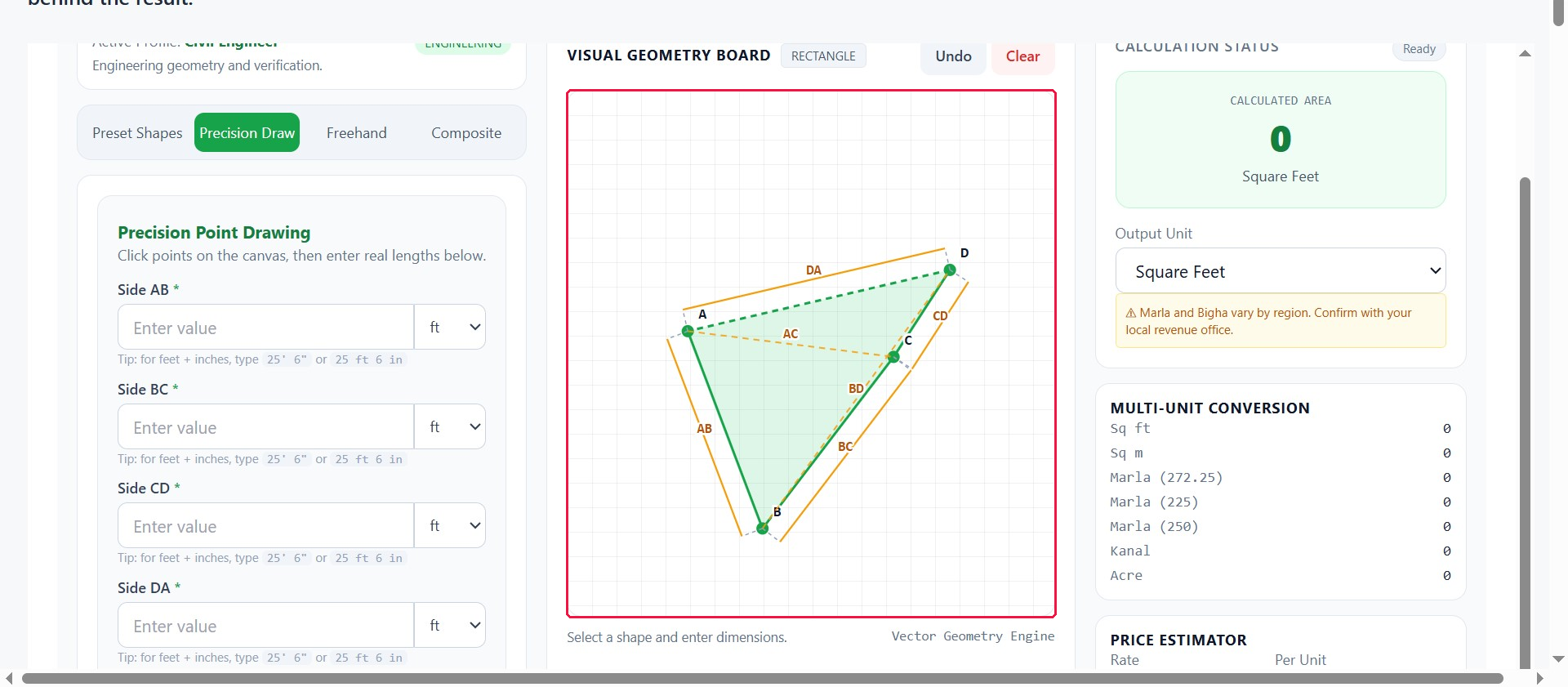
How to calculate area of an irregular polygon
Same process as irregular shapes — Precision Draw handles any polygon with 3+ vertices. Enter all side lengths and the required diagonals for the shape to be exact.
How to work out the area of an irregular plot
Use Precision Draw for land boundaries:
- Walk the plot and record each side length
- Measure one or two diagonals where possible
- Place one vertex per corner on the canvas
- Enter each side length in the fields
- Enter diagonals for exact triangulation
- Click Compute Exact Area
The confidence badge shows Exact when sufficient measurements are entered.
How to calculate area of an irregular rectangle
Select Irregular Quadrilateral in Preset mode, or use Precision Draw if the corners aren’t at 90°. Enter all four sides and one diagonal for exact area.
Keyboard support
- Arrow keys — move the selected vertex (Shift+arrow = 10 px, arrow = 2 px)
- Delete / Backspace — remove the selected vertex
- Tab — move between vertices
Mode 3 — Draw and Calculate Area
Use this mode to draw shapes and calculate area from real-world measurements.
The seven drawing tools
| Tool | How To Use |
|---|---|
| Pencil | Drag to sketch a freehand outline |
| Line | Click two points — creates a reference line (not counted in area) |
| Rectangle | Click first corner, move, click opposite corner |
| Circle | Click center, move, click radius point |
| Ellipse | Click center, move, click extent |
| Arc | Click two endpoints — creates a circular segment |
| Polygon | Click each corner, then click Close Boundary |
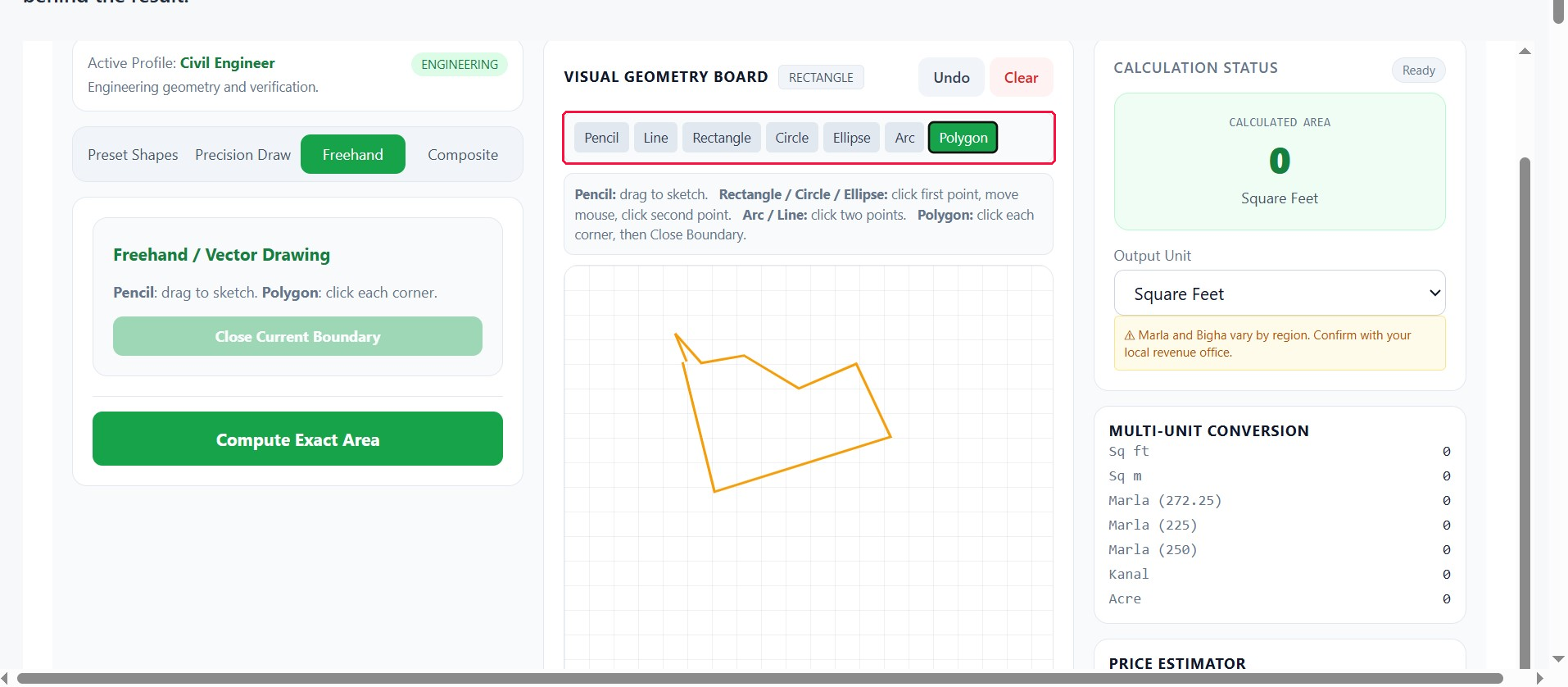
How to draw and calculate area
- Select a drawing tool
- Draw the shape on the canvas
- Enter the real-world measurement when prompted
- Click Compute Exact Area
For polygon tool: enter each side length, plus optional diagonals for exact triangulation.
For pencil tool: enter the real perimeter — the calculator scales the drawn area proportionally.
The confidence badge
- Exact — computed from known dimensions
- Estimated — inferred from a scale factor
- Invalid Geometry — an error occurred
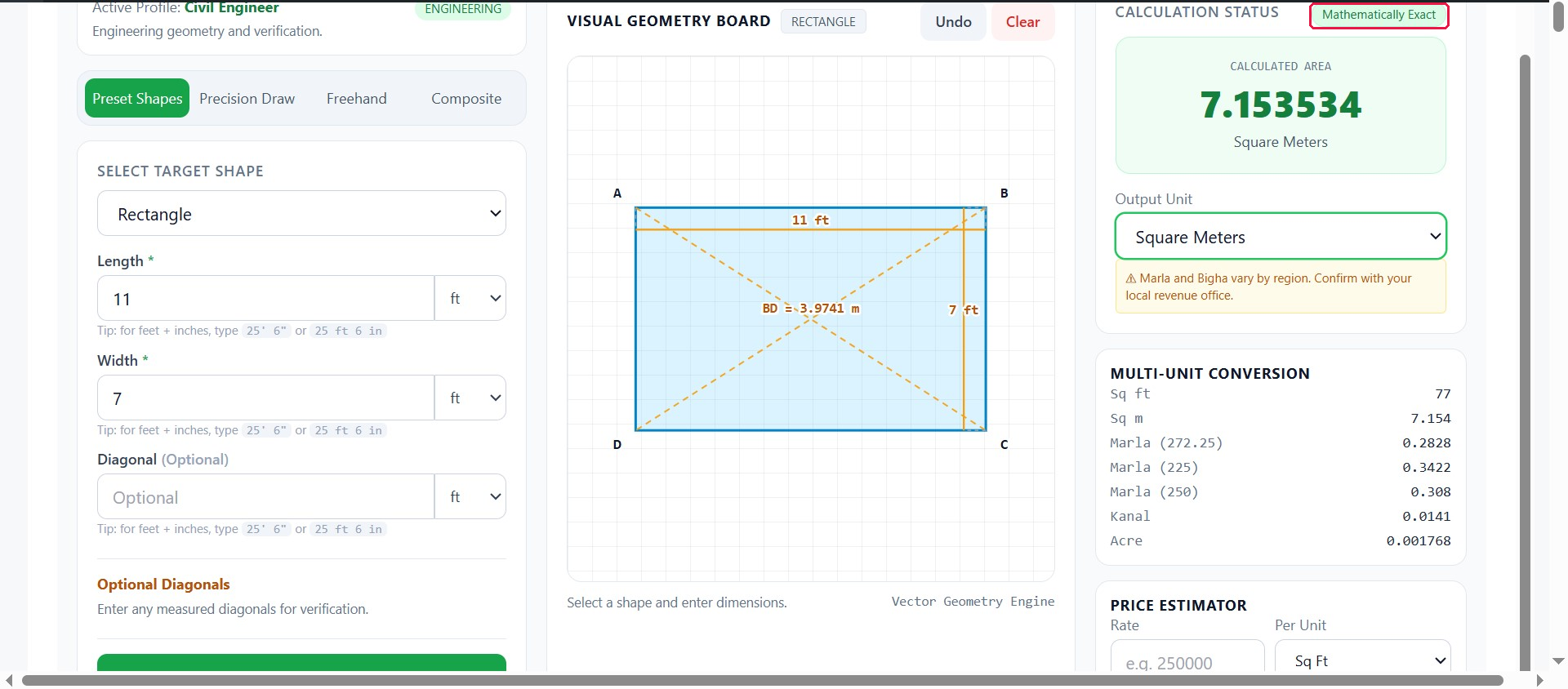
Mode 4 — Composite and Compound Shapes
For compound shapes calculator work — where the total area is a combination of regions:
- Click + Add Shape Layer
- Enter a layer name (e.g., “Main room”)
- Enter the area in square meters
- Choose Add or Subtract
- Repeat for each region
- Click Compute Exact Area
Best for
- Floor plans with cutouts (L-shapes, U-shapes)
- Plots with structures
- Compound shapes calculator problems
- Regions already measured separately
The Visual Geometry Board
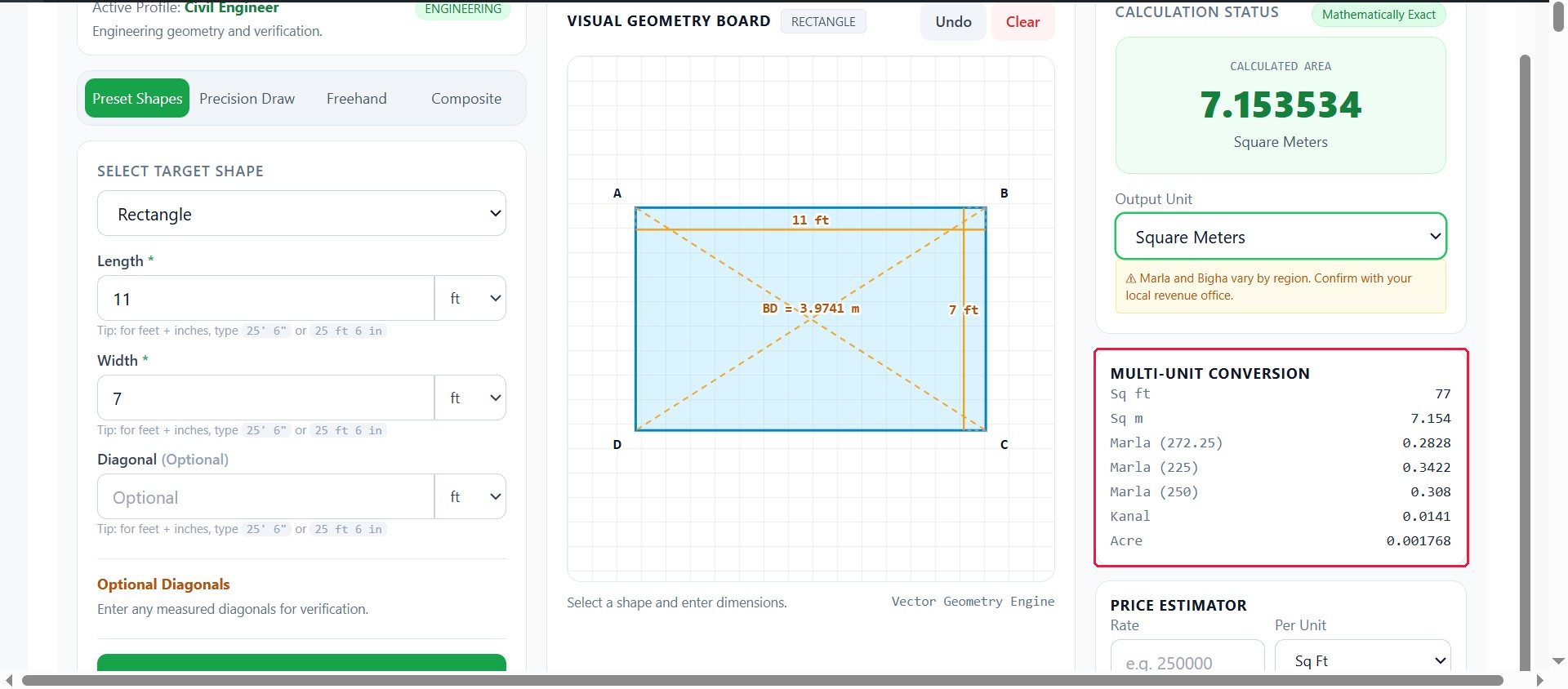
The canvas shows the shape as you build it, drawn to scale with dimensions labeled. Measurement labels show actual entered values; diagonals appear as dashed amber lines.
| Button | What it does |
|---|---|
| Undo | Removes the last point, stroke, or shape |
| Clear | Resets the entire canvas |
The Result Panel
| Element | What it displays |
|---|---|
| Calculated Area | The area in your chosen output unit |
| Confidence badge | Exact / Estimated / Invalid |
| Output Unit dropdown | Switch between 25+ units |
| Multi-Unit Conversion | 7 common units shown at once |
| Price Estimator | Cost estimation |
| Formula / Concept / Solved Calculation | Step-by-step breakdown |
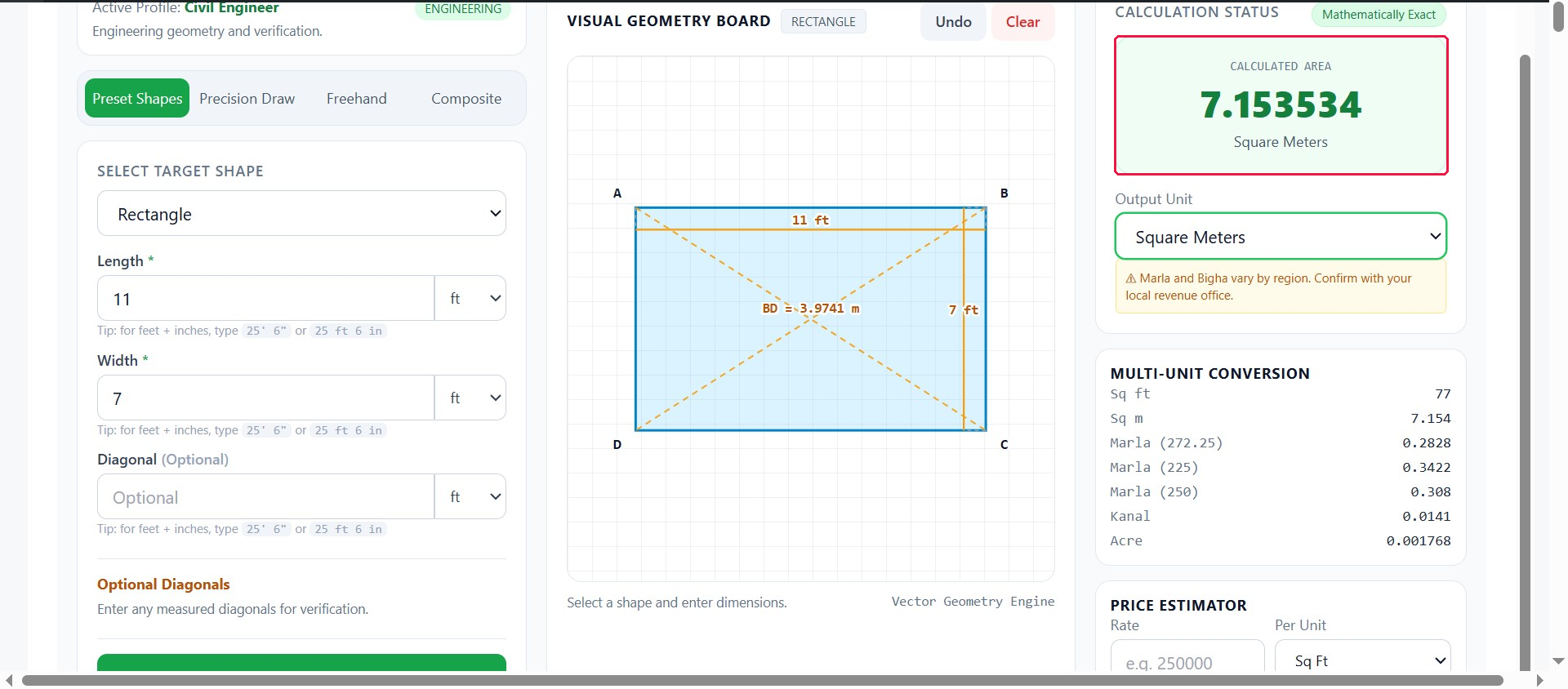
Supported Output Units
Metric: sq mm, sq cm, sq m, sq km, are, decare, hectare
Imperial: sq in, sq ft, sq yd, sq mi, sq nmi
Land (South Asia):
- Marla (272.25 — Punjab standard)
- Marla (225 — DHA/Bahria)
- Marla (250 — KP)
- Marla (HP, PB)
- Kanal
- Bigha (standard, Bangladesh, India)
- Katha, Chatak, Decimal
- Cent, Guntha, Ground
- Acre
Regional note: Marla, Bigha, and Kanal vary by region. Confirm with your local revenue office for legal or property purposes.
Multi-Unit Conversion
The Multi-Unit Conversion panel shows the result in seven units at once:
- Square feet
- Square meters
- Marla (272.25)
- Marla (225)
- Marla (250 — KP)
- Kanal
- Acre
This is useful for comparing across regional conventions.
Price Estimator
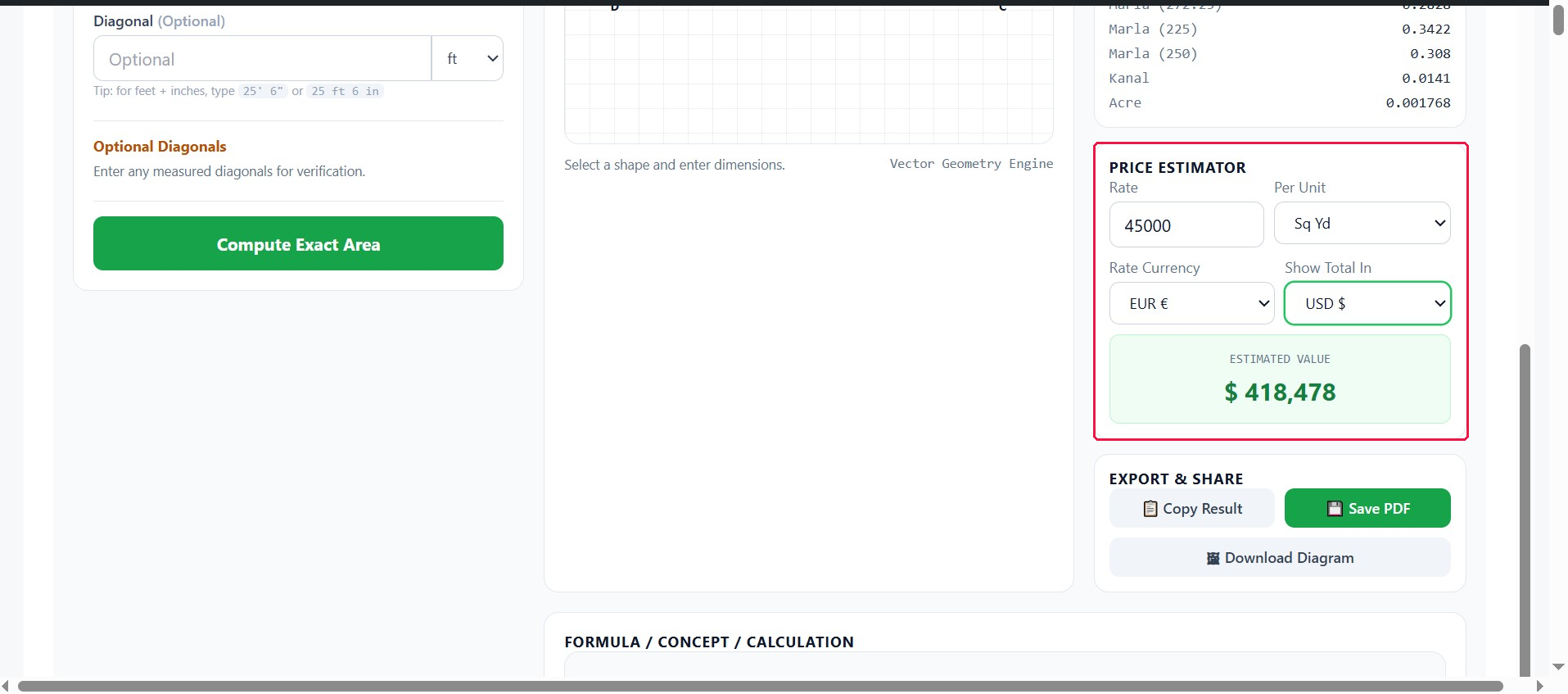
Convert area to a monetary estimate.
- Enter a rate (e.g., 250000)
- Choose the rate unit
- Choose the rate currency
- Choose the total currency
- The estimated value appears
Supported currencies: 45, including USD, EUR, GBP, PKR, INR, AED, SAR, BDT.
Limitation: Exchange rates are hardcoded, not live. Not for financial decisions.
Export Options
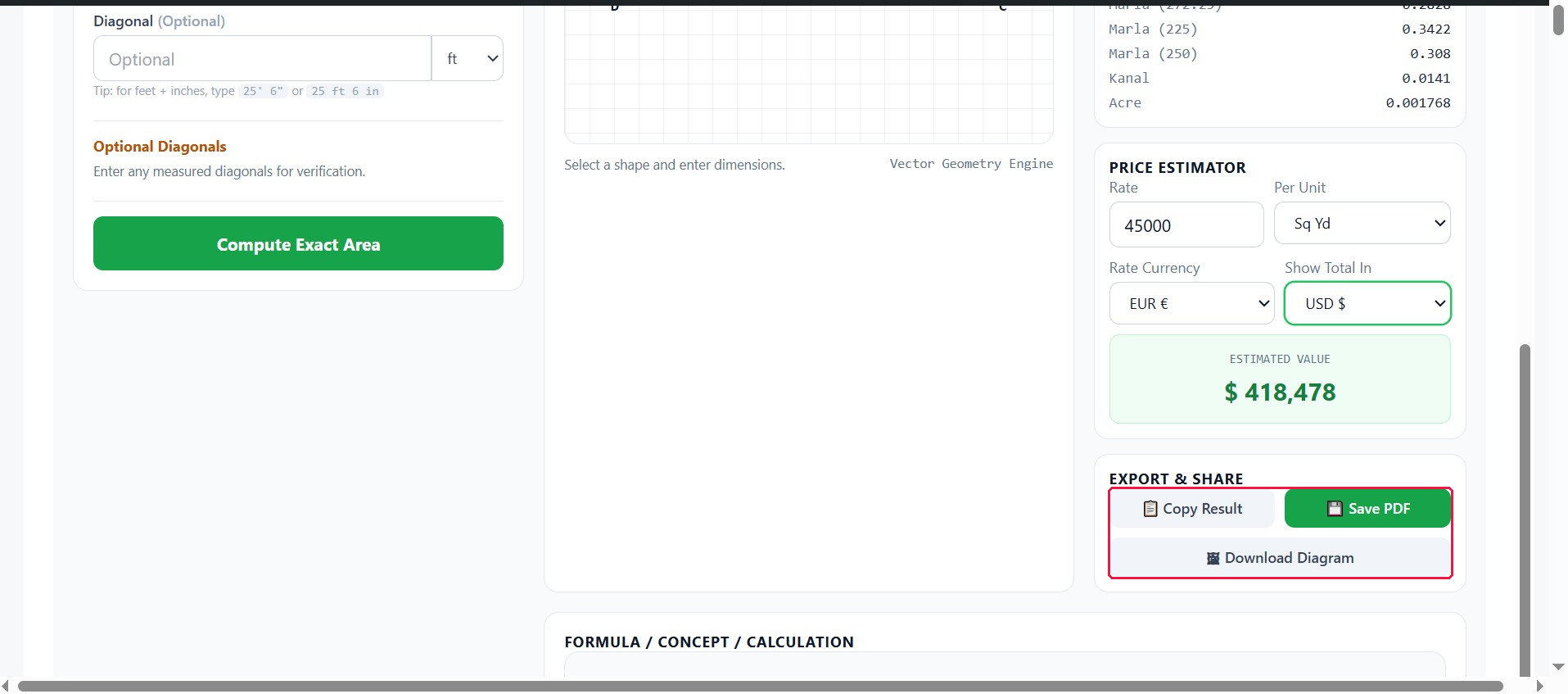
| Button | What it does |
|---|---|
| 📋 Copy Result | Copies a text summary |
| 💾 Save PDF | Opens a print-ready report |
| 🖼 Download Diagram | Downloads the canvas as a PNG |
Accuracy and Precision
Exact
Computed from known dimensions using the correct formula.
Examples: Preset mode calculations, Precision Draw with all diagonals, Freehand with real measurements.
Estimated
Inferred from a scale factor.
Examples: Pencil sketches scaled by perimeter, Precision Draw without diagonals.
The confidence badge shows which type you have.
Limitations
- Freehand accuracy — estimates only; depends on outline accuracy
- Regional unit variation — Marla, Bigha, Kanal vary by region
- Currency conversion — hardcoded, approximate rates
- Precision Draw on shape-specific pages — limited to that shape family
- Drawing precision — approximate, not CAD-level; use arrow keys for finer control
Common Mistakes
| Mistake | Fix |
|---|---|
| Entering slanted side as perpendicular height | Use perpendicular height |
| Mixing units in one calculation | Use per-field unit selectors |
| Entering diameter as radius | Halve the diameter first |
| Entering full width/height for ellipse | Halve both to get semi-axes |
| Skipping diagonals on 4+ point Precision Draw | Enter diagonals for exact results |
| Using Preset for an irregular boundary | Switch to Precision Draw |
How do I calculate the area of an irregular shape?
Use the Precision Draw mode. Place a vertex at each corner of the boundary, then enter the real-world length of each side. If you add one or two diagonals, the calculator triangulates the shape and returns an exact result. For rough estimates, use the Freehand mode instead.
Can I draw a shape and calculate its area directly?
Yes. Switch to Freehand mode, draw the outline with the pencil tool or use the rectangle, circle, ellipse, or polygon tools, then enter the real-world measurements when prompted. The calculator returns the area along with a confidence badge showing whether the result is exact or estimated.
What is the difference between Precision Draw and Freehand?
Precision Draw uses exact measurements you type in for each side and diagonal. It returns an exact area. Freehand uses a drawn outline scaled by a perimeter you enter, so it returns an estimate. Use Precision Draw when you have measured dimensions — use Freehand when you only have a rough sketch.
Can I calculate land area with this calculator?
Yes. The calculator includes Land and Survey shapes like irregular quadrilaterals, trapezoids, and L-shaped plots. It also outputs area in land units — Marla, Kanal, Bigha, acre, and hectare. For most measured land boundaries, Precision Draw gives the most accurate result.
What units does the calculator support?
The calculator supports metric (mm, cm, m, km), imperial (in, ft, yd, mi), and land units including Marla, Kanal, Bigha, acre, and hectare. You can switch between units after calculating, and the Multi-Unit Conversion panel shows the result in seven units at once.